Cal.com integration
Last updated: November 26, 2026

Cal.com bookings say a lot about the week ahead. Connect Cal.com and Lemongraph can use them as context when it decides what deserves attention.
What changes when you connect Cal.com
When a booking needs to move, an agent can reschedule it for you after you say OK.
How to connect Cal.com
1. Create an API key in Cal.com
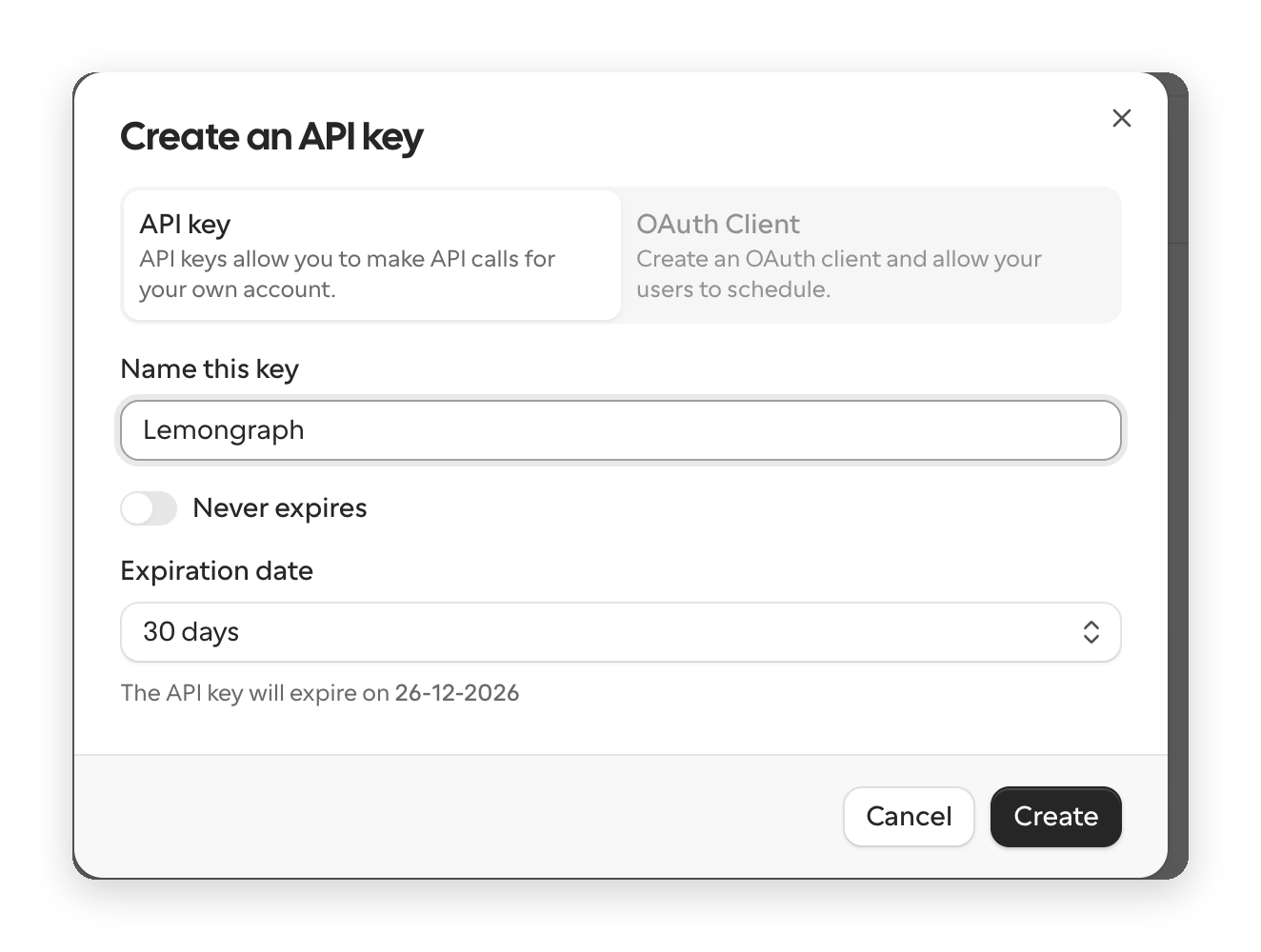
In Cal.com, open Settings, then Developer, then API keys. Choose New, name the key Lemongraph, create it and copy it.
2. Open Connections
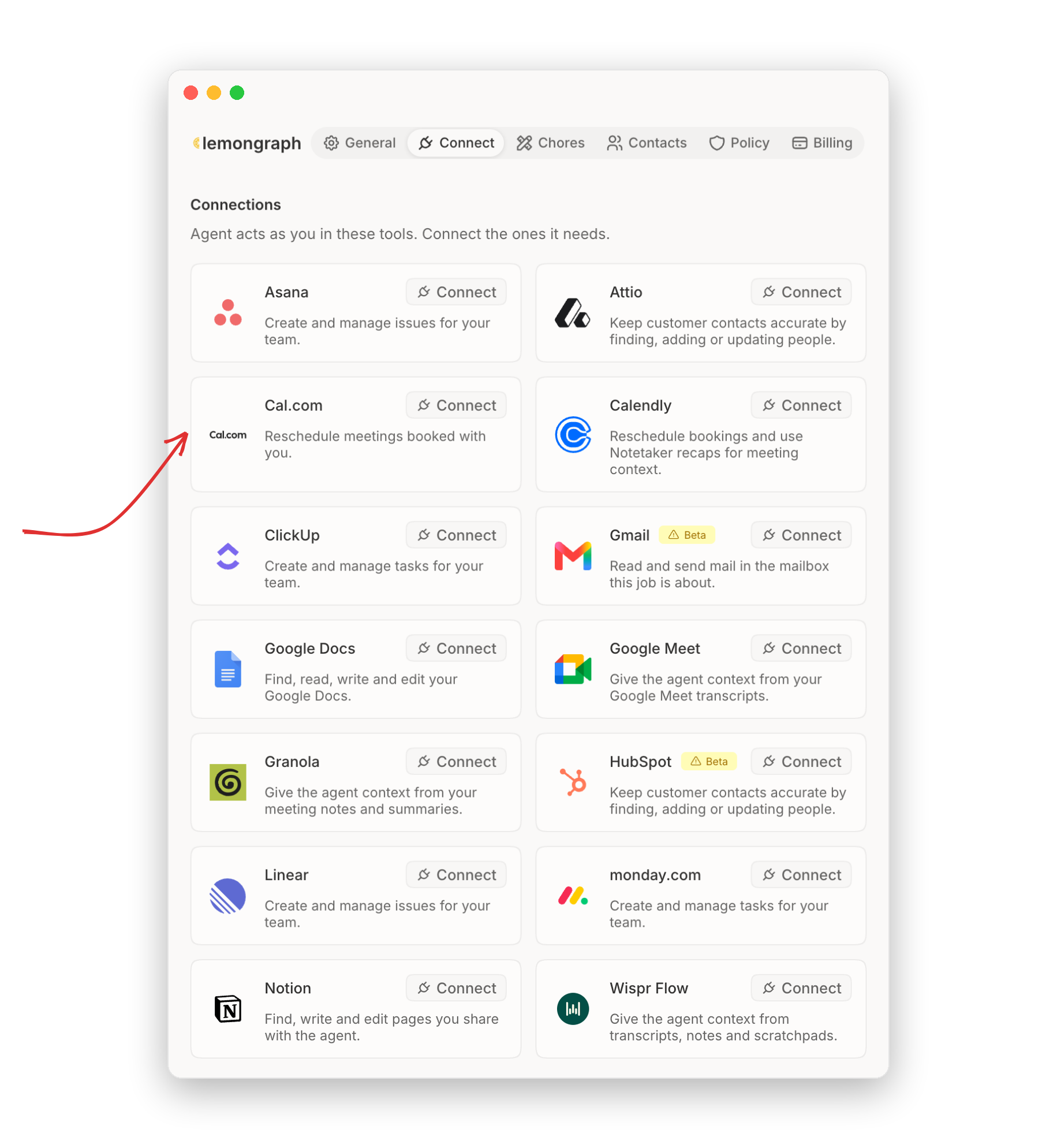
In Lemongraph, go to Settings → Connections.
3. Connect Cal.com
Find Cal.com in the list and choose Connect.
4. Paste the key
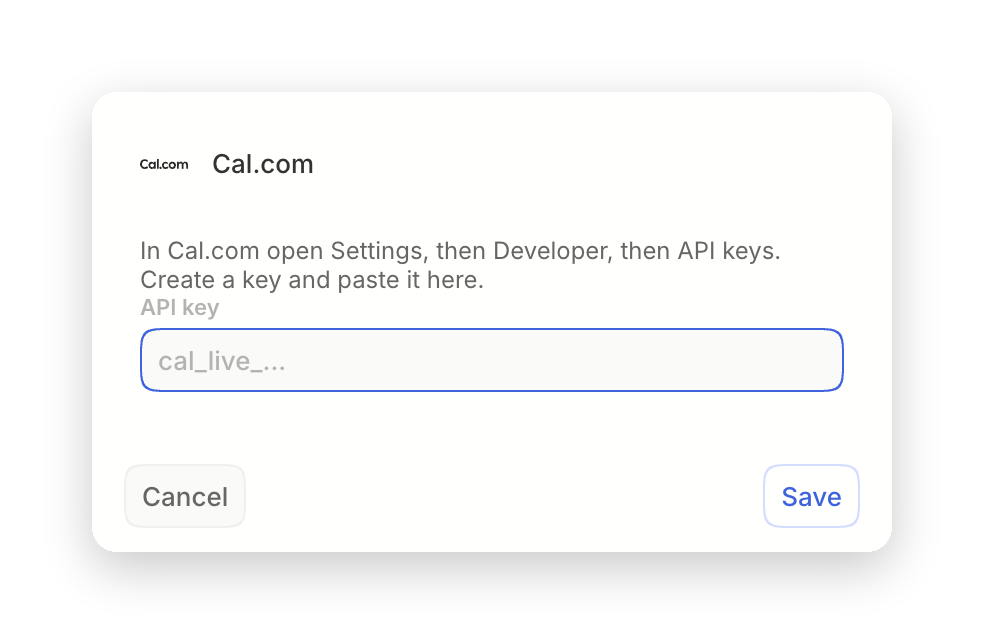
Paste the key you copied and choose Save.
Questions
Can it book new meetings?
Not yet. For now it can reschedule bookings that already exist.
Will it change anything without asking?
No. We built Lemongraph on zero trust, so it asks before every action. When something starts to feel routine, you can switch it to Always allow, one chore or one contact at a time.
Is it free?
Yes, it’s one of the 5 integrations included in the free plan. Pro has no limit.
How do I disconnect Cal.com?
Open Settings → Connections and choose Disconnect next to Cal.com. You can always connect it again later.
Bring agents along
Whatever Lemongraph learns from Cal.com, agents like Claude and ChatGPT get to see too. The MCP guide shows how to connect them.
Something not working the way you hoped? We’d love to hear about it at hey@lemongraph.dev. You can also head back to all integrations.