monday.com integration
Last updated: November 26, 2026

monday.com is where a team plans its work and we have no interest in replacing it. We’d rather sit right beside it, so the items connected to an action item come along as context while changes in monday.com reach Lemongraph as they happen.
We believe one person’s priorities and a team’s plan should be able to talk to each other without anyone copying updates back and forth.
What changes when you connect monday.com
When someone comments on one of these items, edits it or finishes it in monday.com, Lemongraph hears about it right away and the action item tied to it reflects what really happened.
When an action item turns out to belong to the team, an agent can create or update the item in monday.com for you after you say OK.
How to connect monday.com
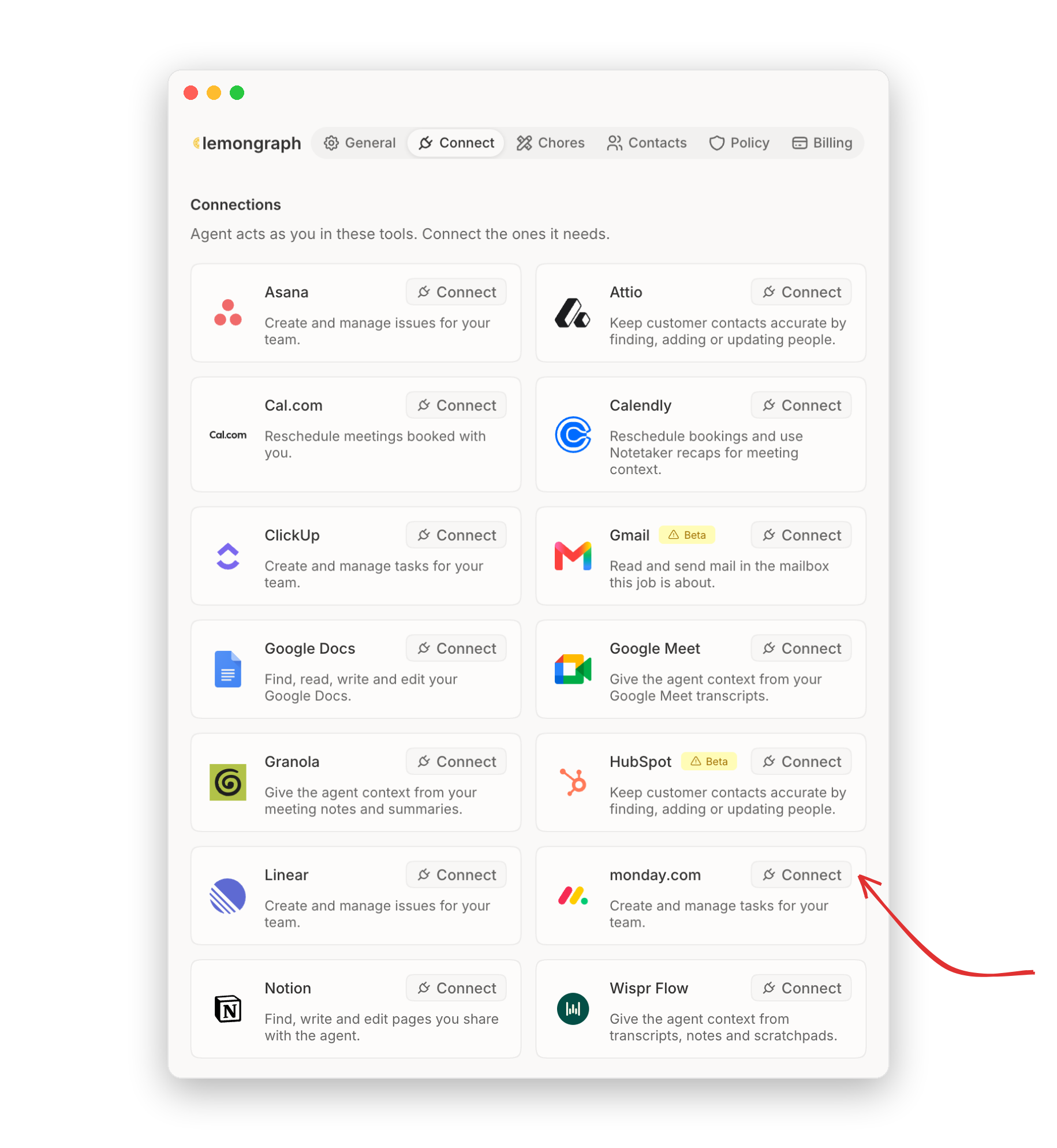
1. Open Connections
In Lemongraph, go to Settings → Connections.
2. Connect monday.com
Find monday.com in the list and choose Connect.
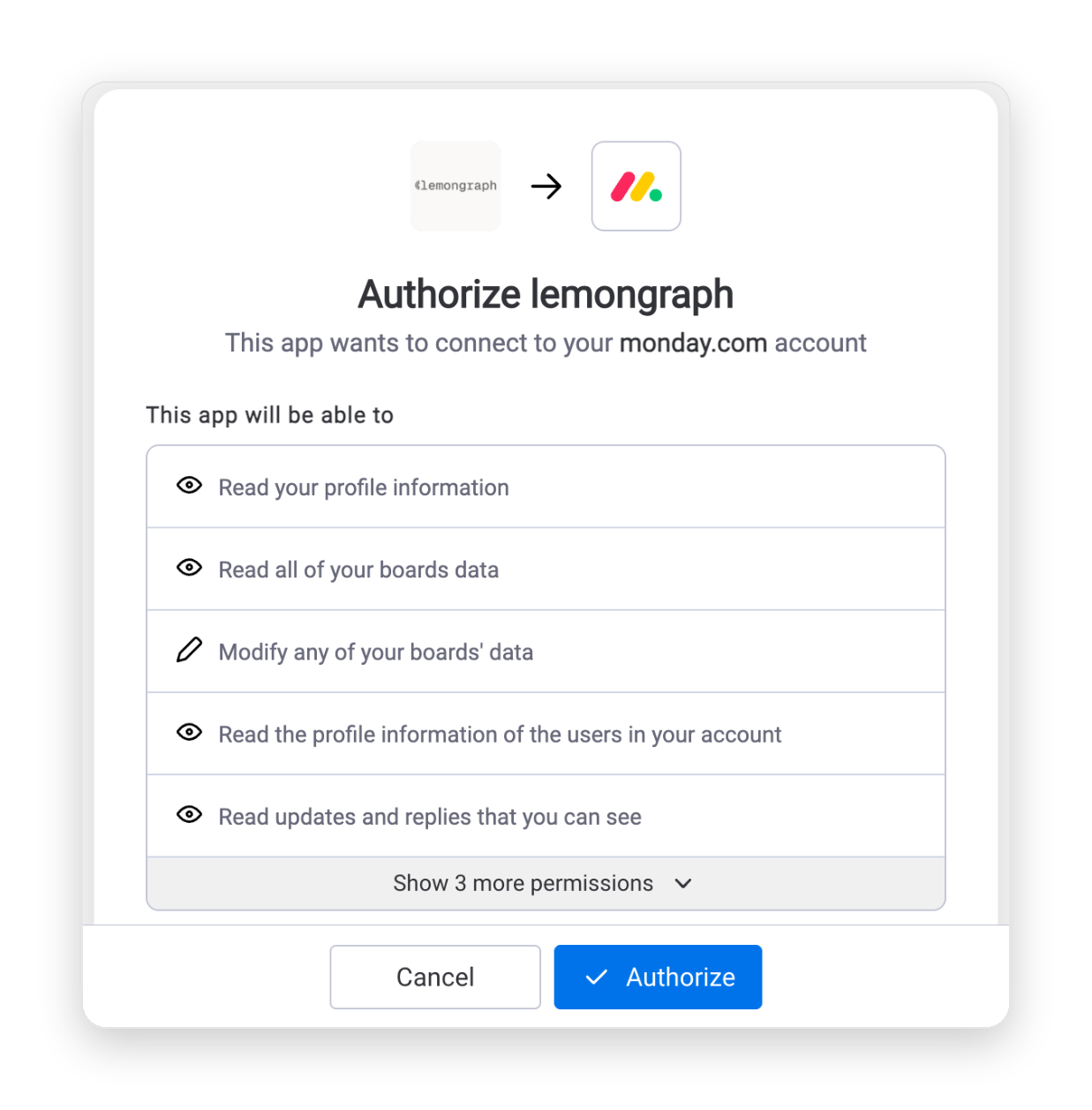
3. Allow access
Sign in to monday.com and approve the access it asks for. Lemongraph reads items for context and only writes when an agent creates or updates one with an OK.
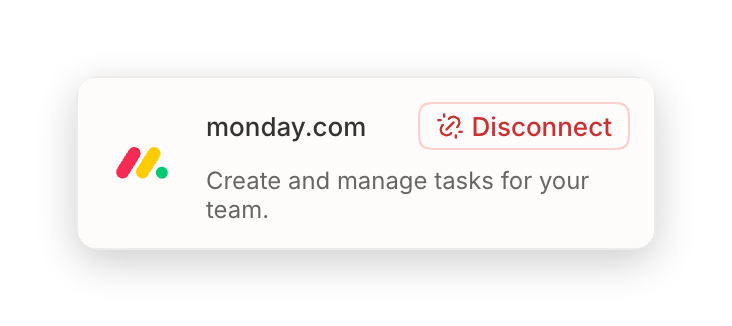
4. That’s it
monday.com now shows up as connected.
Questions
Does Lemongraph replace monday.com?
No. monday.com stays where the team plans. Lemongraph is where one person’s priorities and agents meet.
Does finishing an action item close the item?
No. Marking an action item done in Lemongraph leaves the item in monday.com as it is.
Will it change anything without asking?
No. We built Lemongraph on zero trust, so it asks before every action. When something starts to feel routine, you can switch it to Always allow, one chore or one contact at a time.
Is it free?
Yes, it’s one of the 5 integrations included in the free plan. Pro has no limit.
How do I disconnect monday.com?
Open Settings → Connections and choose Disconnect next to monday.com. You can always connect it again later.
Bring agents along
Whatever Lemongraph learns from monday.com, agents like Claude and ChatGPT get to see too. The MCP guide shows how to connect them.
Something not working the way you hoped? We’d love to hear about it at hey@lemongraph.dev. You can also head back to all integrations.