Wispr Flow integration
Last updated: November 26, 2026

More and more of our thinking happens out loud. Connect Wispr Flow and Lemongraph can read the transcripts, notes and scratchpads you’ve captured there and use them as context for the work they’re about.
What changes when you connect Wispr Flow
That way something you said once doesn’t have to be said again when an agent picks up the work.
How to connect Wispr Flow
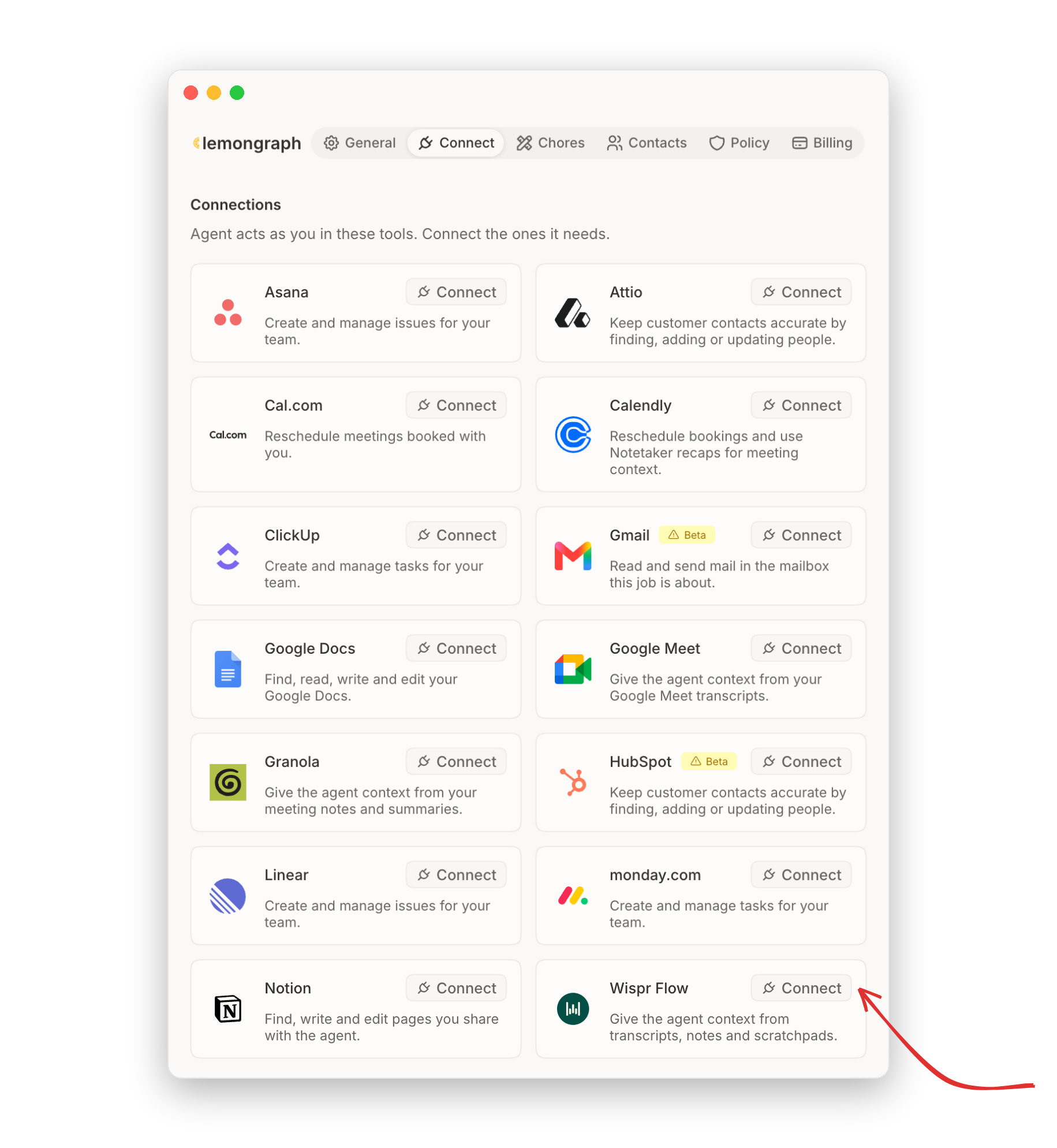
1. Open Connections
In Lemongraph, go to Settings → Connections.
2. Connect Wispr Flow
Find Wispr Flow in the list and choose Connect.
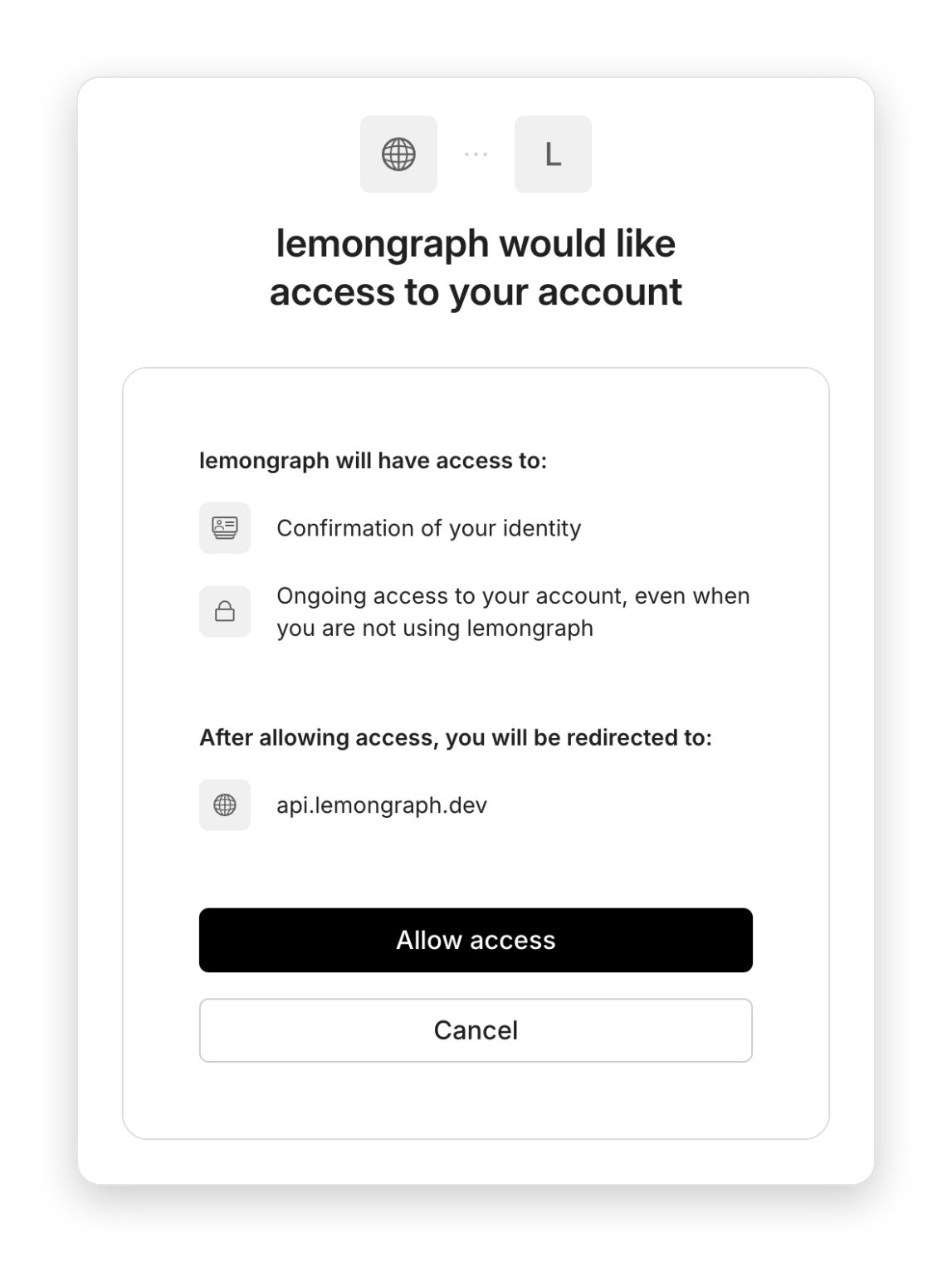
3. Allow access
Sign in to Wispr Flow and approve the access it asks for.
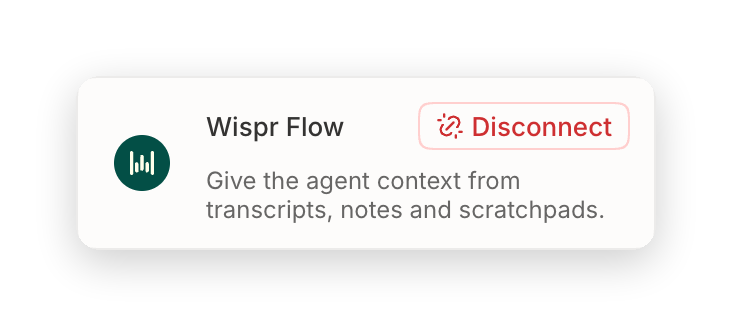
4. That’s it
Wispr Flow now shows up as connected.
Questions
Will Lemongraph change anything in Wispr Flow?
No. Lemongraph only reads from it.
Is it free?
Yes, it’s one of the 5 integrations included in the free plan. Pro has no limit.
How do I disconnect Wispr Flow?
Open Settings → Connections and choose Disconnect next to Wispr Flow. You can always connect it again later.
Bring agents along
Whatever Lemongraph learns from Wispr Flow, agents like Claude and ChatGPT get to see too. The MCP guide shows how to connect them.
Something not working the way you hoped? We’d love to hear about it at hey@lemongraph.dev. You can also head back to all integrations.